Honda Ordering Parts
Guide for exporting Orion purchase orders to HondaNet and importing HondaNet orders back into Orion
The Honda add-on 67 allows purchase orders to be exported from Orion and imported into the HondaNet online parts ordering system. Orders can also be created in HondaNet first and then imported into Orion as new purchase orders.
1. Purchase order started in Orion
- Open the Orion purchase order.
- Select Export File, then choose Honda.
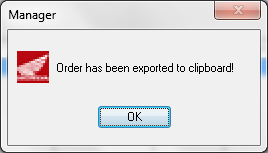
- Orion copies the purchase order contents to the Windows clipboard.
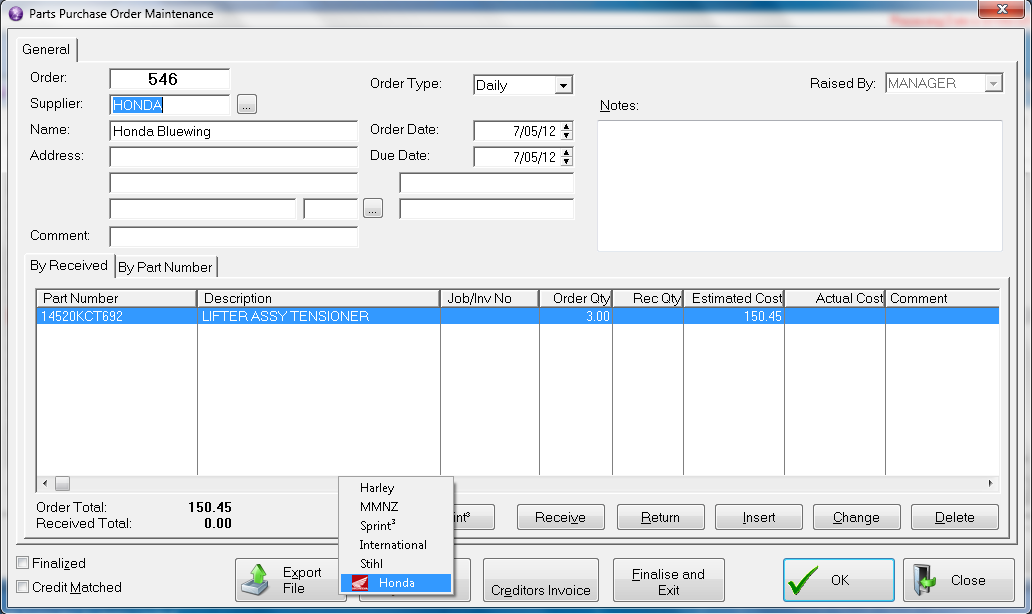
Example export format: The first line is the Orion purchase order number, followed by the part number and quantity.
***ORI***546 | |
14520KCT692 | 3 |
Paste the copied contents into the HondaNet shopping basket.
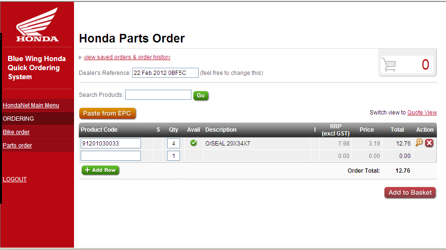
HondaNet basket showing the “Paste from EPC” button
2. Sending the order from HondaNet to Orion
- After finishing the order in HondaNet, select Send To Orion.
- HondaNet exports an XML invoice file to the Orion FTP server.
- If additional lines are added in HondaNet, they are added to the Orion purchase order when the XML file is imported back into Orion.
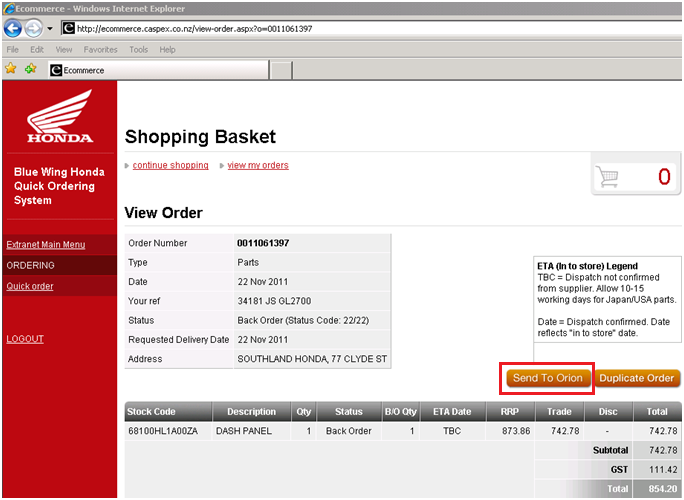 Note: If an ORION_PO number exists in the XML file, Orion updates the existing order. If no ORION_PO number exists, Orion creates a new purchase order.
3. Importing the HondaNet invoice into Orion
- In Orion, go to Misc and select Honda Ordering.
- Select Retrieve New Orders from HondaNet.
- Review the list of outstanding invoices.
- Select the invoice you want to import.
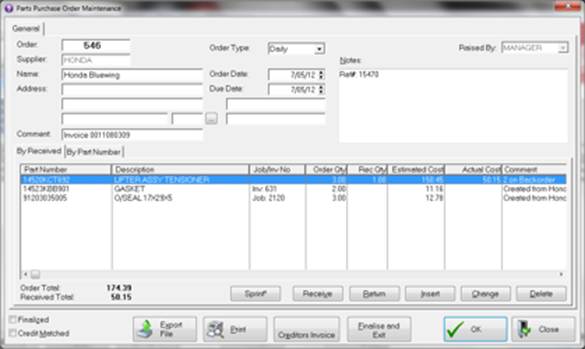
In the example, Orion has matched the first line to the existing purchase order. The original order quantity was 3, but only 1 has been sent, leaving 2 items on back order. Any lines added directly in HondaNet are added to the Orion purchase order as unreceived items.
4. Reviewing imported items
- Items are imported into stock by default.
- To change an item type, double-click the item line and select Workshop Job or Parts Invoice.
- Items not in the stock list are displayed as Not Stocked!
- To add a non-stocked item to stock, use the Add To Stock button or right-click the item line.
5. Updating the Orion order
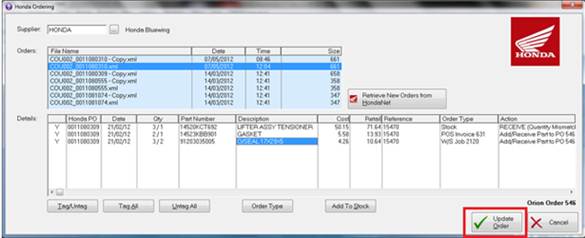
- Select Update Order to import the XML invoice into Orion.
- Confirm the received quantity, back-order quantity, and any new unreceived items.
Result: The existing Orion purchase order is updated with received, back-ordered, and newly added HondaNet items.